The best BIM automation tools are the ones that help people do their work more reliably. For concrete contractors, that may mean reducing repetitive model tasks, keeping quantities useful for estimating, or moving project information into the systems teams use to plan and build.
For contractors, the right BIM automation approach depends on the workflow. Dynamo and pyRevit can help automate repeatable model and data tasks. Custom Revit API add-ins built in C#/.NET support specialized construction workflows that require configurable rules, model generation, validation, and integrations. Rhino.Inside.Revit, Speckle, Power BI, and coordination platforms can complement that approach when geometry, data exchange, reporting, or coordination needs justify them.
At BIM Advantage, automation ideas often start with our modeling team. They work directly with models and project workflows, so they see where repetitive tasks consume time or create avoidable errors. Using tools such as Dynamo, pyRevit, or Excel, they can explore a solution and build an initial prototype. Then they work with our development team to turn promising automations into tools that can be supported and used through the BIM Advantage add-in.
That process shapes how we think about BIM automation. The tool matters, but so do the people who understand the task, the developers who make the solution reliable, and the project workflow the automation needs to support.
The best BIM automation tools at a glance
| Tool | Best use | Why it earns a place in the stack |
| Revit | Core BIM authoring and data | Provides the central model environment that many automation workflows build upon. |
| Dynamo | Visual scripting and repeatable workflows | Automates model tasks through node-based graphs and is included with Revit. |
| Custom Revit API Add-ins (C#/.NET) | Specialized, rules-based construction workflows | Supports custom model generation, component placement, validation, user interfaces, and integrations built around company-specific processes. |
| pyRevit | Everyday Revit productivity and custom commands | Combines practical tools with a flexible environment for building and distributing firm-specific automation. |
| Rhino.Inside.Revit | Complex geometry and interoperability | Brings Rhino and Grasshopper workflows into Revit while supporting native Revit elements. |
| Speckle | Model data exchange and lightweight sharing | Moves BIM data between applications and makes it easier to use outside specialist authoring software. |
| Power BI | Dashboards and model reporting | Turns model properties and quantities into accessible visual reports for broader project teams. |
| Autodesk Construction Cloud | Coordination and issue management | Supports multidisciplinary model review, automated clash detection, and issue tracking. |
There is no universal winner. Each tool solves a different type of problem, and the most effective BIM automation usually comes from combining a few complementary tools rather than searching for one platform that claims to do everything.
What Is BIM automation?

BIM automation uses scripts, plugins, connected applications, or custom software to complete repeatable model and data tasks with less manual input. It can be as simple as renumbering rooms or generating sheets, or as advanced as keeping model quantities connected to estimating, scheduling, inventory, and reporting systems.
For contractors, useful BIM automation commonly includes:
- Checking models for missing information or coordination problems
- Creating, naming, and organizing sheets and views in batches
- Updating parameters across many model elements
- Extracting concrete, formwork, or other material quantities
- Connecting model data to estimating spreadsheets and dashboards
- Supporting construction sequencing and site logistics
- Sharing useful model information with people who do not work in Revit
- Generating construction assemblies from model geometry and predefined company rules
- Selecting, configuring, and placing formwork panels, ties, braces, supports, and other components
- Checking geometric constraints and identifying placement conflicts or unsupported conditions
The purpose is not to automate everything. It is to eliminate avoidable manual work while improving the consistency and usefulness of project information.
What BIM automation looks like at BIM Advantage
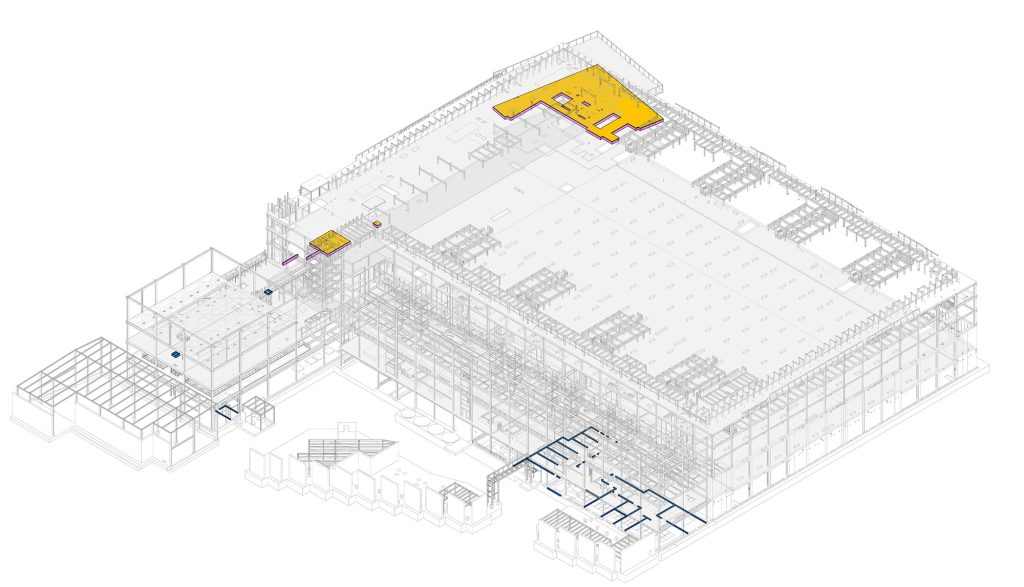
A useful automation starts with a specific task—not a search for something impressive to add to the software stack.
Our modeling team understands the day-to-day work inside BIM models. When they notice a repeated task, they can test whether a script or prototype makes it faster and more consistent. If the idea has broader value, the development team can build it into a more dependable tool within our add-in.
In practice, that process connects three kinds of knowledge:
- Modeling experience: What is the team trying to accomplish, and where does the current process slow down?
- Automation expertise: Can the task be described clearly enough to prototype and repeat?
- Software development: How should the automation be packaged, maintained, and made usable across projects?
This handoff helps keep development grounded in real modeling work. It also gives developers a working example of the intended result, rather than leaving them to interpret a request like “make this faster” without seeing the process.
Examples of the modeling-to-development handoff
The following examples illustrate how a modeling team’s automation idea can move toward a tool that supports a wider workflow.
Example 1: Automating a repetitive model task
Imagine a modeler repeating the same data update across many concrete elements. The manual process takes time and creates opportunities for inconsistencies.
The modeler first identifies the inputs, rules, and expected result. They can use a tool such as Dynamo or pyRevit to prototype the steps and test them against a model. Once the workflow is clear, the development team can evaluate how to package it in the BIM Advantage add-in so users can apply it consistently.
The goal is not just fewer clicks. The automation should make the intended update easier to repeat, reduce avoidable variation, and give the team a dependable way to perform the task.
Example 2: Making model quantities more useful
Concrete modelers work with detailed project information that can support quantity takeoffs and planning. But if a team has to repeatedly extract, clean, or transfer that data by hand, the process can become slow and difficult to maintain.
A prototype can help establish which model elements and properties matter, how the information should be organized, and what the estimating or planning team needs to receive. Developers can then build on that demonstrated workflow, connecting model data with the tools or systems the business uses.
The useful result is a clearer path from model information to project decisions. The automation still depends on well-structured models and agreed standards, but the handoff helps turn a modeling need into a more repeatable process.
BIM automation tools and where they fit
Revit: The core BIM environment
Revit is the foundation for much of our automation work because it provides a structured BIM model and an API for automating model and data workflows. It is not, by itself, the answer to every automation problem. Its value comes from the ecosystem of built-in capabilities, APIs, scripts, plugins, and connected tools that can work with its model data.
For contractors building a new BIM technology stack, selecting a reliable core platform first is more important than collecting plugins. Every additional tool should solve a defined problem within that central workflow.
Dynamo: The main automation workhorse
Dynamo provides a visual programming approach for automating repeatable model and data operations inside Revit. Its visual programming interface works like connecting digital building blocks: each node performs an action, and the connected graph turns those actions into a repeatable workflow.
Dynamo can support tasks such as:
- Renaming or updating parameters across model elements
- Creating sheets and views in batches
- Extracting model data for review or estimating
- Checking models against predefined requirements
- Generating or modifying geometry based on rules
It offers significant flexibility without requiring every user to become a traditional software developer. The person creating a graph still needs to understand the model, the desired outcome, and the logic behind the workflow. Automation built on a poorly defined process simply completes the wrong task faster.
pyRevit: Practical automation for everyday Revit work
pyRevit is one of the most useful additions to a Revit environment. It provides a collection of practical tools while also serving as a platform for creating and distributing custom Revit commands.
For many teams, pyRevit creates immediate value through straightforward tasks such as renumbering elements, cleaning up files, managing views, and accelerating sheet production. More technically capable teams can use it to build custom buttons and shared toolbars around their own standards and processes.
That combination is what makes pyRevit so effective: users can benefit from useful tools immediately, while the organization retains room to develop more specialized automation over time.
Custom Revit API add-ins: Purpose-built construction automation
Custom add-ins, built with C#/.NET, allow teams to implement specialized workflows directly in Revit. They can analyze model geometry, select and place components, apply company-specific rules, validate results, and provide configuration options through a dedicated interface.
For contractors, examples include formwork layouts, circular wall systems, pier cap assemblies, tie and brace placement, and quantity extraction. The value comes from encoding repeatable construction knowledge while supporting real project conditions and user-controlled exceptions.
Choose this approach when the workflow and expected return justify software development, testing, deployment, and ongoing maintenance.
Rhino.Inside.Revit: Connecting complex geometry to BIM
Rhino.Inside.Revit brings Rhino and Grasshopper into the Revit environment. It is especially valuable when a team needs the geometric freedom of Rhino or the parametric capabilities of Grasshopper without losing the structure and data associated with native Revit elements.
This combination works well for complex building forms, formwork conditions, and other geometry that can become difficult to transfer between platforms. Instead of relying on disconnected exports that may lose intelligence or require extensive cleanup, teams can create more controlled conversion workflows between design geometry and BIM data.
Not every contractor needs Rhino.Inside.Revit. When complex geometry is a recurring part of the work, however, it can eliminate a major interoperability bottleneck. Its suitability depends on the geometry workflow and the team’s Rhino and Grasshopper expertise.
Speckle and Power BI: Turning models into useful reports
Large BIM models contain valuable information, but that information is not useful if project leaders cannot access or understand it. Speckle for Power BI helps move model objects and properties into visual reports that are easier to explore and share.
This combination can support dashboards for material quantities, model status, project issues, and other operational information. Instead of requiring every stakeholder to open a large model in specialist software, the project team can present focused information in a format that is more useful to executives, project managers, superintendents, and owners.
The goal is not simply to create a better-looking dashboard. It is to give each person the information required to make a decision without forcing them to navigate the entire model.
This combination is one option for connected model reporting. The right approach depends on the data sources, refresh requirements, access needs, and tools the company already uses.
Autodesk Construction Cloud: Coordination across project teams
Autodesk Construction Cloud Model Coordination provides a shared environment for reviewing multidisciplinary models, detecting clashes, and tracking issues. It is useful when automation must extend beyond an individual Revit file and support coordination among multiple project participants.
When automatic clash detection is enabled for a coordination space, supported models added to that space can be checked for geometric conflicts. Teams can then review the results, determine which clashes require action, and assign issues for resolution. The software accelerates detection, but the project team still needs a clear process for prioritizing and resolving what it finds.
Which BIM automation tools are overrated?
The most overrated tools are often the ones promising a complete model from a few clicks or a short AI prompt. Generative and AI-assisted tools are advancing quickly, but an impressive demonstration does not guarantee production-ready model data.
A model can look convincing while containing inconsistent parameters, unsuitable families, unreliable quantities, or geometry that does not reflect how the project will actually be built. When human teams must spend hours validating and repairing the output, the promised automation may simply move the work to a different part of the process.
AI can still be valuable for focused tasks. The key is to evaluate the output, required cleanup, and downstream usefulness—not just how quickly the first model appears.
Production automation should be evaluated for repeatability, traceable rules, and validated outputs. Explicit rules help make results reproducible, while human review remains essential for checking whether the rules and results fit the construction conditions.
Which BIM Automation tools are underutilized?
Some of the most underutilized BIM automation tools are also the simplest.
Dynamo Player
Dynamo Player allows team members to run prepared Dynamo graphs through a straightforward interface. The person using the automation does not need to understand how the graph was built. This makes it possible for a BIM specialist to develop a reliable workflow and give the broader team a simple way to run it.
Excel-to-Revit Workflows
Excel is rarely described as an advanced BIM tool, but it remains useful because project teams already understand it. A controlled connection between Excel and Revit can make bulk parameter updates, quantity reviews, and data validation much faster than manual copy-and-paste work.
These tools are easy to overlook because they are not flashy. When applied to high-frequency tasks across multiple projects, however, simple and dependable automation can produce more value than a sophisticated platform used only occasionally.
Which BIM automation capabilities provide the greatest value?
The highest-value automation opportunities are usually frequent, rules-based tasks where errors or delays create downstream costs.
1. Rule-based model and assembly generation
Automation can configure and place construction components from model geometry and predefined rules. For formwork workflows, this may include panel layouts, corners, ties, braces, and supports. Its value should be measured through time saved, consistency, and the amount of manual adjustment still required.
2. Automated quality checks
Automated checks can identify missing parameters, inconsistent naming, unexpected quantities, or coordination issues before the information reaches estimating or the field. For concrete construction, catching a missing embed, questionable opening, or incomplete quantity before a pour is much more valuable than documenting the problem afterward.
Automation does not replace an experienced constructability review. It gives that reviewer a cleaner model and a faster way to locate predictable problems.
3. Batch sheet creation
Sheet setup is necessary but repetitive. A well-built automation can create, name, number, and organize a large drawing set in minutes rather than requiring a team member to repeat the same steps across every sheet.
The benefits go beyond time savings. Rule-based sheet creation also improves consistency, reduces numbering mistakes, and allows skilled team members to focus on the content of the drawings.
4. Live material quantities
Model-based quantities become much more valuable when they stay connected to estimating and planning workflows. Automated extraction can reduce manual transcription and make it easier to identify changes in concrete volume, formwork area, or other material needs as the model develops.
The quality of the result still depends on the quality of the model. Reliable quantity automation requires clear modeling standards, consistent parameters, and validation procedures.
| Approach | Typical fit | What to plan for |
| Dynamo | Visual model/data workflows | Graph dependencies, testing, and maintenance |
| pyRevit | Custom commands and shared tools | Code ownership, runtime compatibility, and distribution |
| C#/.NET Revit add-in | Specialized applications and construction rules | Development, deployment, testing, and version support |
| Rhino.Inside.Revit | Rhino/Grasshopper geometry workflows | Relevant expertise and software requirements |
BIM automation tool combinations that work well
Individual tools become more useful when each one has a clear role in the workflow.
Revit + Excel + Dynamo or pyRevit
This is the workhorse combination for many teams. Revit provides the model, Excel provides a familiar environment for reviewing structured information, and Dynamo or pyRevit handles repeatable data movement and model updates. It works particularly well for parameter management, quantity workflows, sheet production, and quality checks.
Rhino + Revit through Rhino.Inside
Rhino provides freedom for developing complex geometry, while Revit provides structured BIM elements and project information. Rhino.Inside.Revit connects the two environments and reduces the friction associated with exporting, importing, and rebuilding geometry.
Autodesk Construction Cloud + Speckle + Power BI
Autodesk Construction Cloud supports project coordination and issue management, Speckle helps move and structure model data, and Power BI presents selected information through accessible dashboards. Together, they can turn specialist BIM data into clear project updates for people responsible for decisions, logistics, and execution.
Revit + Custom Add-in + Business Systems
A custom Revit add-in can connect model workflows to estimating, inventory, scheduling, or other business systems through APIs and structured data exchange. This can reduce repeated data entry and carry validated quantities and component information into downstream processes.
When does custom BIM automation make sense?
A custom tool is not automatically better than an existing plugin. If an off-the-shelf solution handles most of the task at a reasonable cost, it may be the sensible choice.
Custom development becomes worth considering when:
- The workflow is repeated often and creates meaningful labor costs.
- Several disconnected tools are being combined to complete one routine task.
- The process depends on a company’s specific estimating, prefabrication, formwork, or sequencing methods.
- Existing tools cannot connect model information to the systems the business relies on.
- A promising prototype would benefit from a consistent, supported interface for broader use.
The starting point is the work itself. Define the task, the people who perform it, the information it uses, and what a successful result should look like. Then test the smallest solution that can address it.
What makes an automation useful?
A useful BIM automation should make a real workflow better. Before investing in a script, plugin, or custom tool, consider:
- What task is being repeated?
- Who performs it, and how often?
- Where do delays or errors occur?
- What information goes into and comes out of the process?
- How will the team know the automation produced the right result?
- Who will maintain it as models, projects, and software change?
Automation can reduce repetitive work and help teams apply defined rules consistently. It does not replace model review, construction judgment, or clear standards. A poorly understood process can still produce a poor result—only faster.
When should you invest in custom BIM software?
Our rule of thumb is straightforward: if an off-the-shelf plugin solves roughly 80% of the problem at a reasonable cost, use the plugin. Buying and configuring an existing tool is usually faster and less expensive than developing and maintaining software from scratch.
Custom software becomes a stronger investment when:
- Your team must connect three or four separate tools to complete one everyday workflow.
- Your company has a proprietary estimating, prefabrication, formwork, sequencing, or logistics process that generic software cannot support.
- Manual workarounds are being repeated across projects or job sites and creating significant labor costs.
- Existing tools require your business to change a high-value process that provides a competitive advantage.
- Model data needs to connect directly with internal systems for scheduling, inventory, project planning, or invoicing.
The decision should be based on the value of the bottleneck, not the appeal of owning custom technology. Our custom software development begins with the business workflow so the final tool supports how the organization actually operates.
Building a BIM automation stack around the workflow
If we were building a BIM automation stack today with a realistic budget, we would keep it lean:
- 1. Start with Revit and clear model, family, and parameter standards.
- 2. Use built-in tools, Dynamo, pyRevit, or an existing plugin where they meet the workflow requirements.
- 3. Evaluate a custom C#/.NET Revit add-in when specialized geometry, configuration, validation, or integrations justify development.
- 4. Add data exchange, reporting, and coordination tools when a specific operational need supports them.
We would not add another tool until a specific, measurable bottleneck justified it. A smaller stack with clear standards, trained users, and well-maintained automations will usually outperform a long list of disconnected plugins.
How to choose the right BIM automation tools
Before purchasing software or developing a script, define the problem in operational terms:
- What task is being repeated?
- How often does it occur?
- Who performs it?
- How much time does it consume?
- What errors or downstream risks does it create?
- What data enters and leaves the workflow?
- Who will maintain the automation when software or project requirements change?
Production automation needs an owner and a maintenance plan. Budget for Revit and API upgrades, family compatibility, regression testing, performance checks, installers and updates, deployment, and user support. Test representative models and unusual conditions before each release so that changes remain dependable across supported versions.
Then test the smallest solution capable of addressing the problem. That might be a built-in Revit function, a Dynamo graph, a pyRevit command, an existing plugin, or a connection between tools already in use. Custom development should follow only when the value and uniqueness of the workflow justify it.
Evaluate automation against real project exceptions, including slopes, multiple elevations, varying radii, openings, intersections, component collisions, and family variations. Provide clear validation messages and user controls for conditions that require an override. Measure the time spent checking and correcting the result alongside the time saved generating it.
Our BIM consulting services help concrete contractors evaluate these decisions, establish reliable workflows, and connect BIM automation to estimating, coordination, logistics, and field execution. When the right solution requires detailed model support, our BIM modeling services can help carry the process from strategy into active projects.
Frequently asked questions about BIM automation tools
What are BIM automation tools?
BIM automation tools are built-in features, scripts, plugins, connected applications, or custom software that complete repeatable model and data tasks with less manual work. Common examples include Dynamo, pyRevit, Rhino.Inside.Revit, Speckle, Revit API add-ins, and model coordination platforms.
What is the best BIM automation tool for Revit?
The best approach depends on the workflow and the team maintaining it. Dynamo supports visual automation, while pyRevit provides productivity tools and an environment for custom commands. Custom C#/.NET Revit add-ins are another option for specialized construction applications, interfaces, validation, and integrations. Compare the approaches using the required behavior, deployment needs, maintenance effort, and expected return.
Can BIM automation replace model review?
No. BIM automation can identify predefined problems, missing information, clashes, and inconsistent data, but it cannot replace construction judgment. Automated checks are most valuable when they help experienced team members focus their attention on the conditions that require human review.
Is custom BIM software better than an off-the-shelf plugin?
Custom BIM software is better only when the workflow is valuable, repeatable, and too specific for existing tools. If a standard plugin solves most of the problem at a reasonable cost, the plugin is generally the better first investment.
How should a contractor begin using BIM automation?
Start with one frequent and measurable bottleneck, such as sheet setup, parameter updates, model quality checks, or quantity extraction. Implement the smallest dependable solution, train the people who will use it, measure the result, and expand only after the workflow is stable.
Start with the modeling team
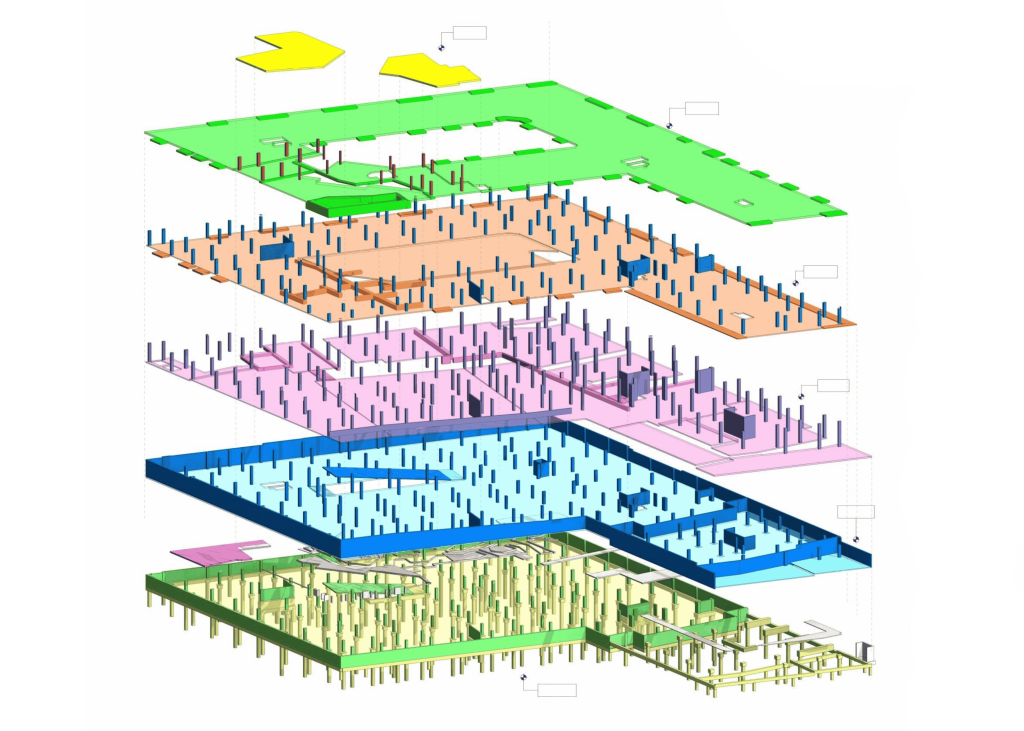
The best BIM automation tools are not always the ones with the longest feature list. Often, the most valuable idea comes from the person who performs a task every day and can explain exactly where the current workflow breaks down.
At BIM Advantage, that insight can move from the modeling team’s prototype to the development team’s implementation in our add-in. It gives developers a clearer view of the intended workflow and helps keep the finished tool connected to the needs of concrete construction.
Our BIM consulting services help concrete contractors evaluate workflows and identify opportunities for improvement. When the solution calls for a broader software connection, our custom software development can connect BIM with the systems teams use to manage and execute work.